
Contrôleur LED RGB WiFi avec Télécommande IR 24 Touches


Contrôleur LED RGB WiFi avec Télécommande IR 24 Touches
SPECIFICATIONS
Applicable Lights: RGB led strip
Brand Name: Vogliovoi
Certification: ce,ROHS
Choice: yes
Connection Mode: DC
Controled Method: APP / Remote
High-concerned chemical: None
Item Type: RGB controler
Material: ABS
Max. Load Power: 144w
Model Number: HS5050MH01
Origin: Mainland China
Power Source: DC
Remote Distance: 10m
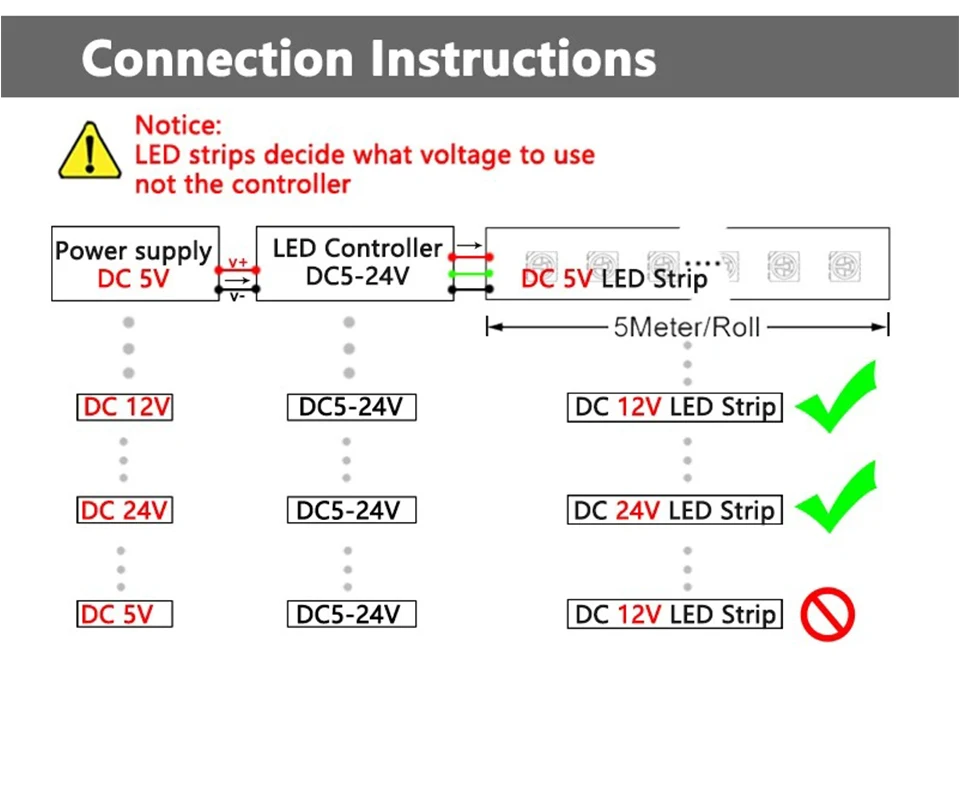
Voltage: 12 V
Wattage: 72w
WiFi Smart APP RGB LED controller with 24key IR remote Voice Smartphone APP Control DC12V For 2835 5050 RGB LED strip light
Specification:
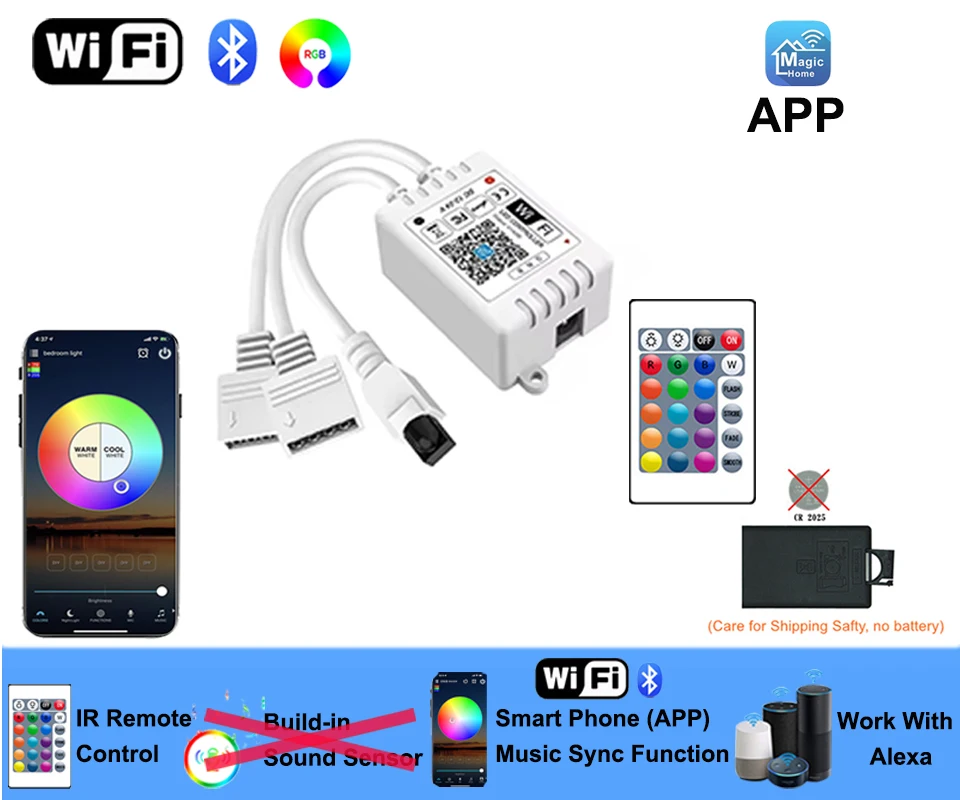
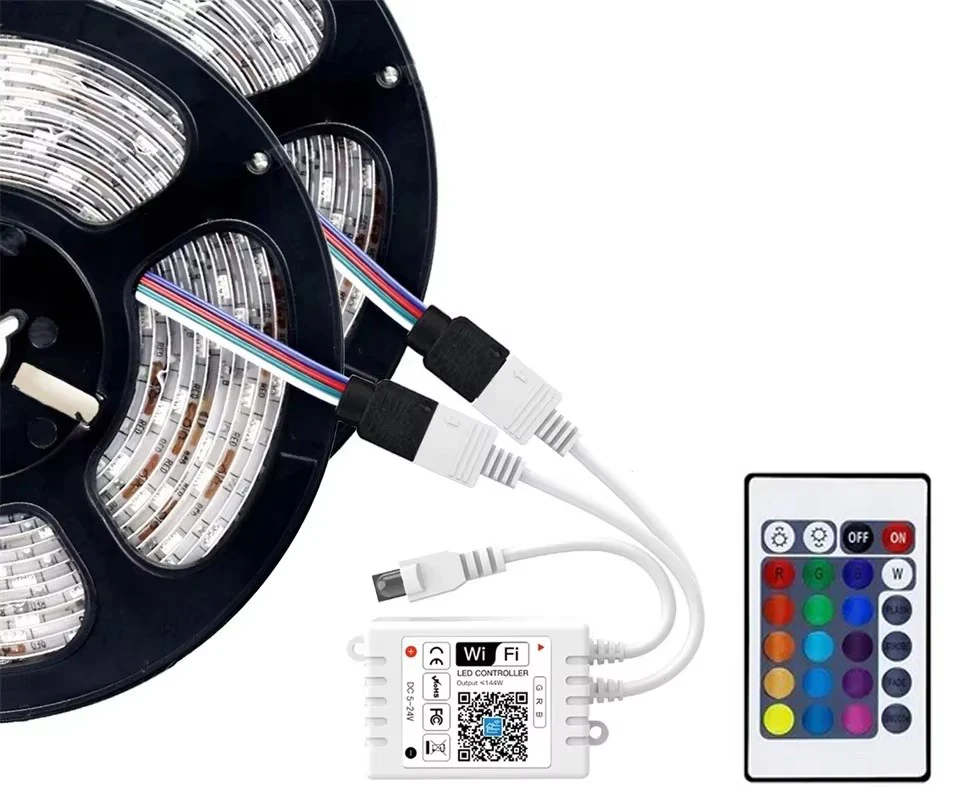
Model:24Key WIFI APP
Input Voltage: DC12V
Output channel: Can be used 3 channel, RGB channel
Output current: RGB: 3A*3
Connect method: Common anode
Output Votage:DC 12VV
Output power:12V <72W
Connect way: R,G,B for LED Light, for Power supply, ANT for WIFI Signal Reception.
Support cell phone: Android / IOS
Color Adjustable: RGB
Note: Remote NO Battrey(CR2025)
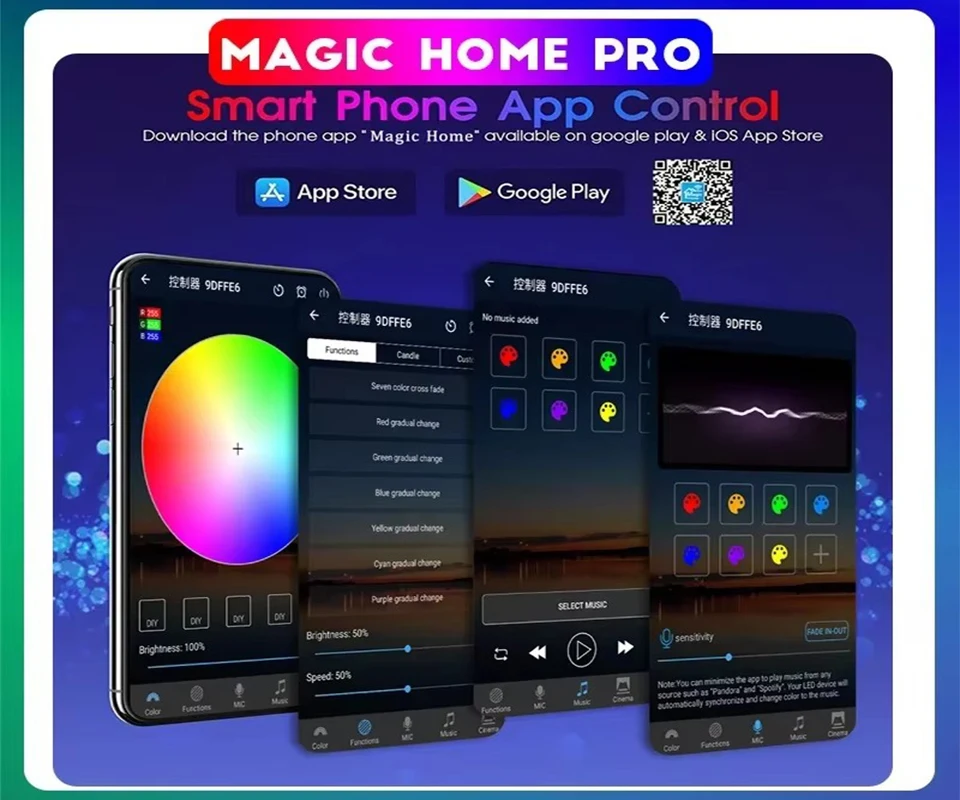
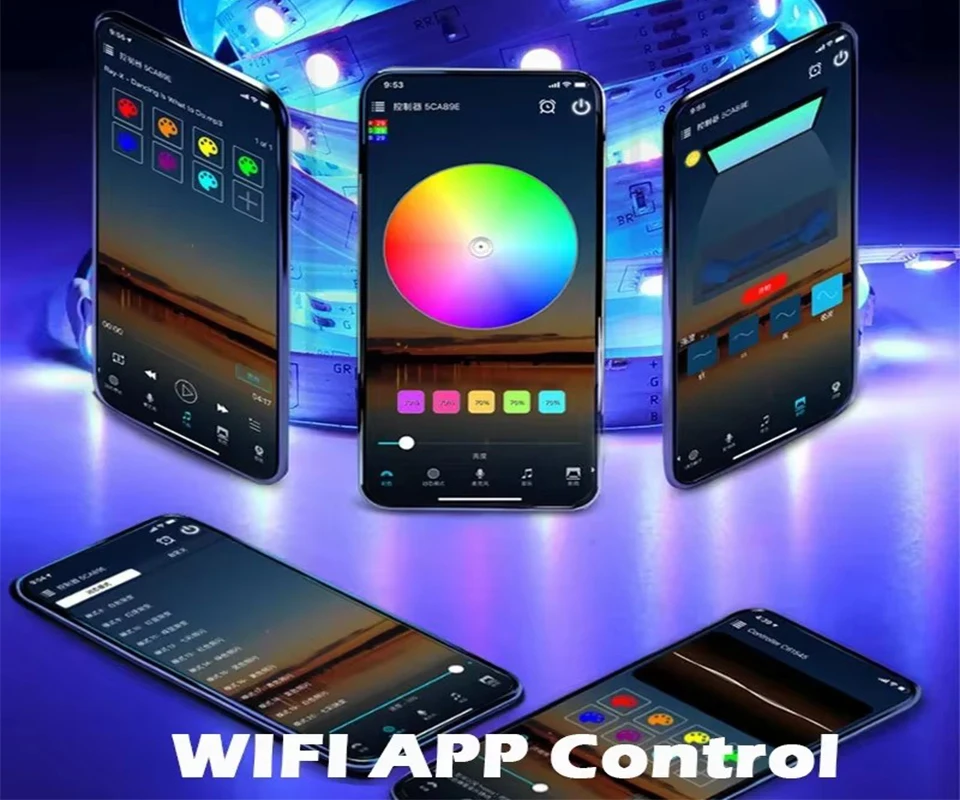
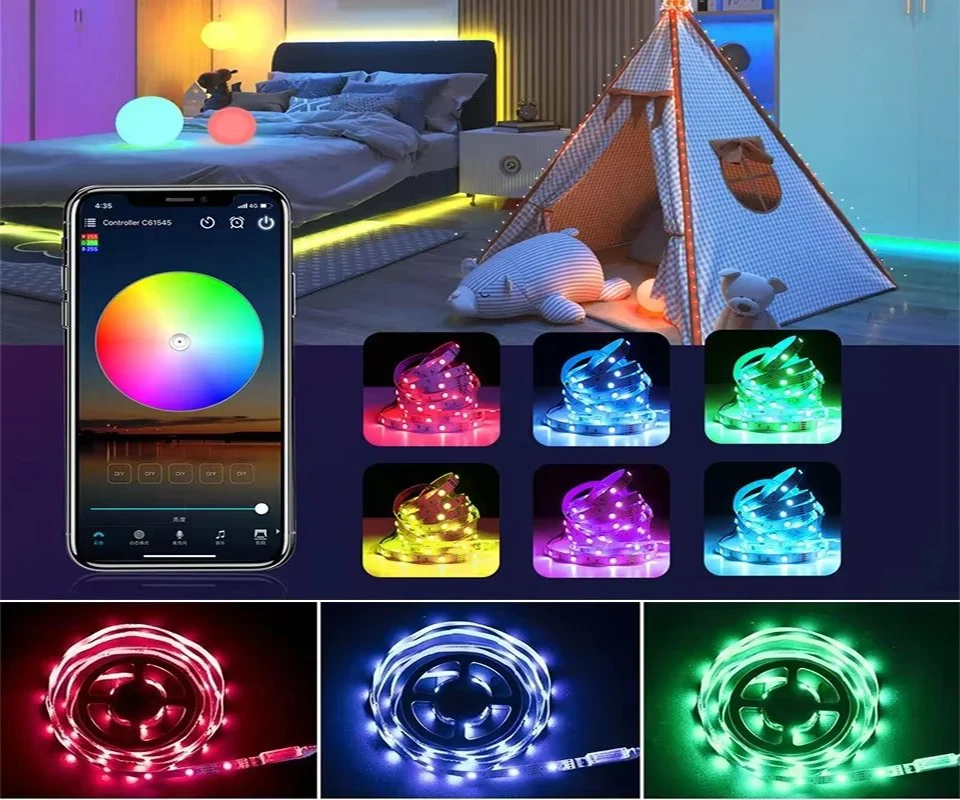
Function:APP with the function of Music Sync
Please follow the steps below:
1.First connect the device to the App successfully and keep it online:
2.All devices are displayed in the device list onthe App home page;
3. Long press the device icon, select the deviceyou want to group(two or more), and in thepop-up menu,select "Create Group".
4.On the Create Group page, devices of thesame device type are displayed,and onlydevices of the same device type can begrouped into the same group, select the room,and then click "Next".
5.Name the group and select the icon, thegroup name must be within 20 characters
6.Click"Finish",it automatically return to themain page of the App. Check all devices orclick to open the group in the collapsed menuof the device to check whether the creation is successful.

 Common issues with network connection
Magic Home Tips--Network
Be sure that you are using 2.4GHz WiFi when connecting with the smart led strip. And WiFi must be detectable status. Many routers have 5 GHz and 2.4 GHz network and your phone will always automatically connect to the 5 GHz network. So, you have to completely turn off your 5 GHz network by going to your router settings (enter the router IP address into your internet browser, usually something like 192.168.1.1), forcing your phone to connect to the 2.4 GHz network. In addition, the router encryption mode must be WPA2-PSK type and the authentication type must be AES.
How to configure separate Wi-Fi SSIDs for 2.4GHz and 5GHz bands?
If your router supports both the 2.4 GHz and 5 GHz bands, but only one Wi-Fi name is displayed on the Wi-Fi search page of your mobile phone, perform these steps:
1. Go to the Wireless page of the router. (The entry address is usually provided on the label attached to the back of the router).
2. Go to the 2.4 GHz setting page, and set the Wi-Fi name (SSID) to XXX-2.4G, where xxx indicates the Wi-Fi name. Save setting.
3. Go to the 5 GHz setting page, and set the Wi-Fi name (SSID) to XXX-5G, where xxx indicates the Wi-Fi name. Save setting.
How to set the router to "DHCP Server"?
If the "DHCP" function of the router is not turned on, with multiple smart devices in the home, which will affect the normal use of connected devices, please refer to the following steps:
1. Enter the LAN Settings (LAN) page of the router.
2. Find the DHCP " setting option
3. Open the DHCP setting option
4. Save the Settings and then
How to connect Magic Home APP
Step 1: Search "Magic Home" on Phone to download it.
Step 2: Connect led strip to your local 2.4G WIFI with your phone connecting to it.
Step 3: Set up your Magic Home account. Add Device>Lighting devices and confirm the device in the App.
Step 4: For lighting equipment, lamp strip controller, reset by switch 4 times
Common problems in group settings
How to add a device to a group?
Please follow the steps below:
1.First connect the device to the App successfully and keep it online:
2.All devices are displayed in the device list onthe App home page;
3. Long press the device icon, select the deviceyou want to group(two or more), and in thepop-up menu,select "Create Group".
4.On the Create Group page, devices of thesame device type are displayed,and onlydevices of the same device type can begrouped into the same group, select the room,and then click "Next".
5.Name the group and select the icon, thegroup name must be within 20 characters
6.Click"Finish",it automatically return to themain page of the App. Check all devices orclick to open the group in the collapsed menuof the device to check whether the creation is successful.